BAYC - Tech News, Tutorials

Results for items labelled ' Windows 10 ' Click here to go back to recent items
Windows 10 - Running Malwarebytes to check for Viruses Windows 10 - Running Malwarebytes to check for Viruses Reviewed by baybookings on 21:53:00 Rating: 5

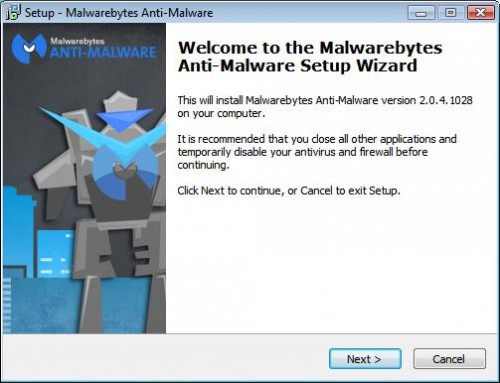
Windows 10 - Download & Install Malwarebytes virus checker


This is another one for Ken. He wants to download and install Malwarebytes virus checker on his desktop PC.

'Downloading' is the name given to the process of copying a file from a large computer on the internet onto your home computer.

'Installing' is the name given to the process where a software program makes itself ready to be used on your home computer.

'Malwarebytes Anti-Malware' is a program that scans your computer and finds viruses that the normal virus checkers don't even look for. We will be downloading and installing the free version.

Read More
20:01:00 ,
Windows 10 - Download & Install Malwarebytes virus checker Windows 10 - Download & Install Malwarebytes virus checker Reviewed by baybookings on 20:01:00 Rating: 5

Windows 10 - Connect to WIFI with a Password


This one is for Ken so that he can connect to Wifi down at the club.

Your computer won't automatically connect to the internet when you take it to a new place. A laptop or tablet or phone connects to the Internet through Wifi (short-range wireless signal).

A Wifi connection is usually protected by a Wifi password which needs to be entered into the laptop. You only have to enter the password once, the laptop will remember it after that and automatically connect to that Wifi whenever it is near to it.

Read More
15:18:00 ,
Windows 10 - Connect to WIFI with a Password Windows 10 - Connect to WIFI with a Password Reviewed by baybookings on 15:18:00 Rating: 5

Windows 10 - How To Copy, Move & Delete files

Windows 10 - How To Copy, Move & Delete files Windows 10 - How To Copy, Move & Delete files Reviewed by baybookings on 17:04:00 Rating: 5
Windows 10 - How To Select Files Windows 10 - How To Select Files Reviewed by baybookings on 19:31:00 Rating: 5

Windows 10 - Anniversary Upgrade Stuck at 99%


Some users are reporting that their Windows 10 Anniversary upgrades are getting stuck at 99%.
Microsoft's advice is to wait until the upgrade finishes which they say could take all day and there's no guarantee that it will work.

An alternative method that seems to be working OK is to manually install it using a Microsoft Program called the 'Media Creation Tool'.

1)  Click here to download the Media Creation Tool. The program will be downloaded to the 'Downloads' folder.

Read More
16:59:00
Windows 10 - Anniversary Upgrade Stuck at 99% Windows 10 - Anniversary Upgrade Stuck at 99% Reviewed by baybookings on 16:59:00 Rating: 5

Windows 10 - How to find and start a program


There are at least 5 ways to find & start a program on Windows 10.
As an example, I will show the various methods to find and start the 'Windows Media Player' program.  (Click on an image to see the full size.)

Note: I'm using the Windows 10 Anniversary edition which is slightly different than the first Windows 10 as it shows the list of programs by default instead of having click on the 'all apps' icon to show the program list.

The 5 methods are -

1) A Taskbar Shortcut icon    (only if you have one. 
2) A Desktop Shortcut icon   (only if you have one. 
3) From a Start screen icon    (only if you have one. 
4) From the Program List.
5) From a Search.

Read More
12:24:00
Windows 10 - How to find and start a program Windows 10 - How to find and start a program Reviewed by baybookings on 12:24:00 Rating: 5

Windows 10 - anniversary update Install problem


While installing the Windows 10 anniversary update on an Acer laptop this week I had a problem with the install getting about a third of the way through when the screen went black. The laptop wouldn't respond to any keypress and could only be turned off by pressing the power button for 20 - 30 seconds.

Read More
15:27:00
Windows 10 - anniversary update Install problem Windows 10 - anniversary update Install problem Reviewed by baybookings on 15:27:00 Rating: 5

Windows 10 - Restore the old photo import


This post explains how to restore the old import routine in Windows 10. This tip comes courtesy of Mike Lang.

With Windows 10, Microsoft brought out a new Photo app called 'Photos'. They also hid the old Photo import. The problem with the new Photo app is that it it makes it very difficult to import photos into the folder of your choice. It doesn't give you the option to name the folders. It lumps all your photos by dates.

This post is slightly more technical than most. It explains how to create a shortcut to the old import program. If anyone doesn't feel confident doing it, we can do it for you at our BAY Centre technical clinics every Friday 11am - 1pm & 1.30pm - 3.30pm (£2 per session which includes a hot drink and biscuits).

We are going to create a 'shortcut' on the desktop which will point to the old import program.

Read More
13:48:00 ,
Windows 10 - Restore the old photo import Windows 10 - Restore the old photo import Reviewed by baybookings on 13:48:00 Rating: 5
Windows 10 - Uninstall a program Windows 10 - Uninstall a program Reviewed by baybookings on 16:35:00 Rating: 5

Windows10 - autoplay not working?


For many users, the Windows 10 update reset the autoplay options.

What is Autoplay? Autoplay tells Windows what to do if a user inserts a DVD or a USB stick or a camera photo card into their computer.
Read More
21:44:00
Windows10 - autoplay not working? Windows10 - autoplay not working? Reviewed by baybookings on 21:44:00 Rating: 5

Windows10 - Can't play videos


The Problem:   Windows 10 will no longer play videos. 

The Reason:     With Windows 10, Microsoft discontinued some software called 'Media Centre'
Read More
15:17:00
Windows10 - Can't play videos Windows10 - Can't play videos Reviewed by baybookings on 15:17:00 Rating: 5
Powered by Blogger.